> For the complete documentation index, see [llms.txt](https://docs.plenit.com/llms.txt). Markdown versions of documentation pages are available by appending `.md` to page URLs; this page is available as [Markdown](https://docs.plenit.com/docs-en/support/tutorials/linux/how-to-set-up-docker.md).
# How to deploy a Docker container in Plenit
Read the following tutorial if you want to learn **how to set up Docker on Plenit** to be able to deploy your applications quickly, easily, and securely.
Docker is a **software platform** that has enjoyed great popularity in recent years among systems teams, developers and of course **DevOps,** because **it allows you to create, test, and implement heterogeneous solutions** extremely quickly, without compromising the security of the solution.
When deployed, this **packages the software** **inside a container**, which is a standard unit that includes basic software, libraries, tools, and other elements that allow the deployed software to run.
In addition, it is a solution that allows the deployed elements to be modified, so within a container **other elements can be added**, **complementary software**, **etc**. This solution is widely supported by systems and providers across all segments, and as it could not be otherwise, at Plenit, we not only give you the ability to deploy them, but also help you do it.
### **How to set up Docker on Plenit?**
#### **Prerequisites or pre-configuration**
To successfully complete this tutorial and be able to **set up a Docker on Plenit** the following will be needed:
* On the one hand, to be \*\*registered on the Plenit Platform \*\*with an organization and be registered in it after **logging in** [**Log-in**](https://admin.jotelulu.com/)**{target="\_blank" rel="noopener"}**.
* On the other hand, [**having created a Server subscription**](https://jotelulu.com/soporte/tutoriales/como-desplegar-servidor)**{target="\_blank" rel="noopener"}**
* Having an \*\*Ubuntu server \*\*within the subscription.
* A user with \*\*administrator privileges \*\*either through "root" or using the "sudo" command.
#### **Step 1. Install the container service on my Ubuntu Linux**
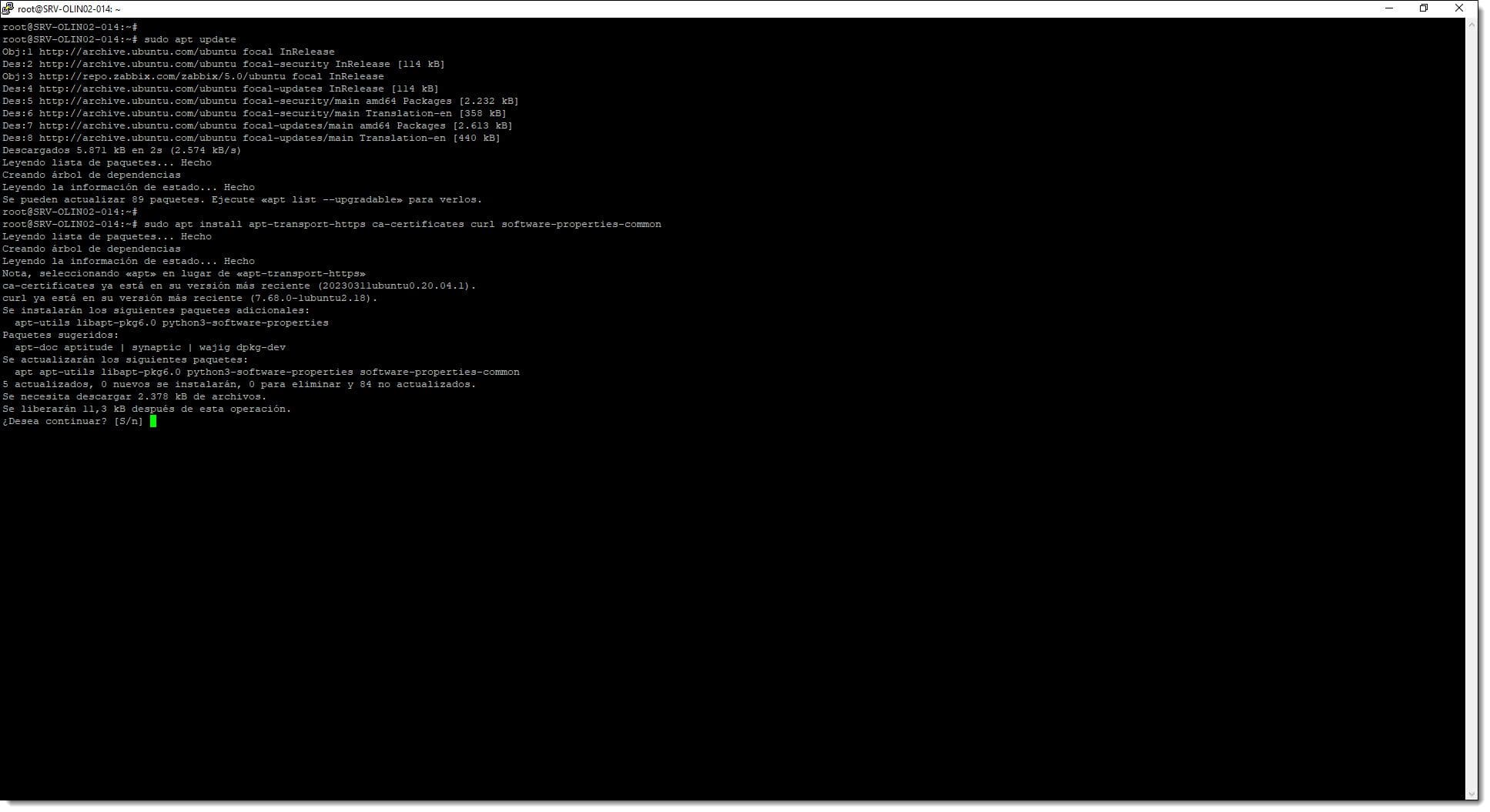
The first thing we need to do is update the apt package list.
For this we can use the command from root or with a user who is allowed in the sudoers list.
*# apt-get update*
or
*# sudo apt-get update*
After this, we will proceed to install the packages to allow the use of repositories for apt through HTTPS.
*# apt install apt-transport-https ca-certificates curl software-properties-common*
or
*# sudo apt install apt-transport-https ca-certificates curl software-properties-common*
**NOTE:** *From now on we will omit one of the two options so as not to lengthen the tutorial more than necessary, but we must bear in mind that we can always use either "sudo" or the command with root or another user with elevated privileges.*
Step 1. We update the package list and install support for HTTPS
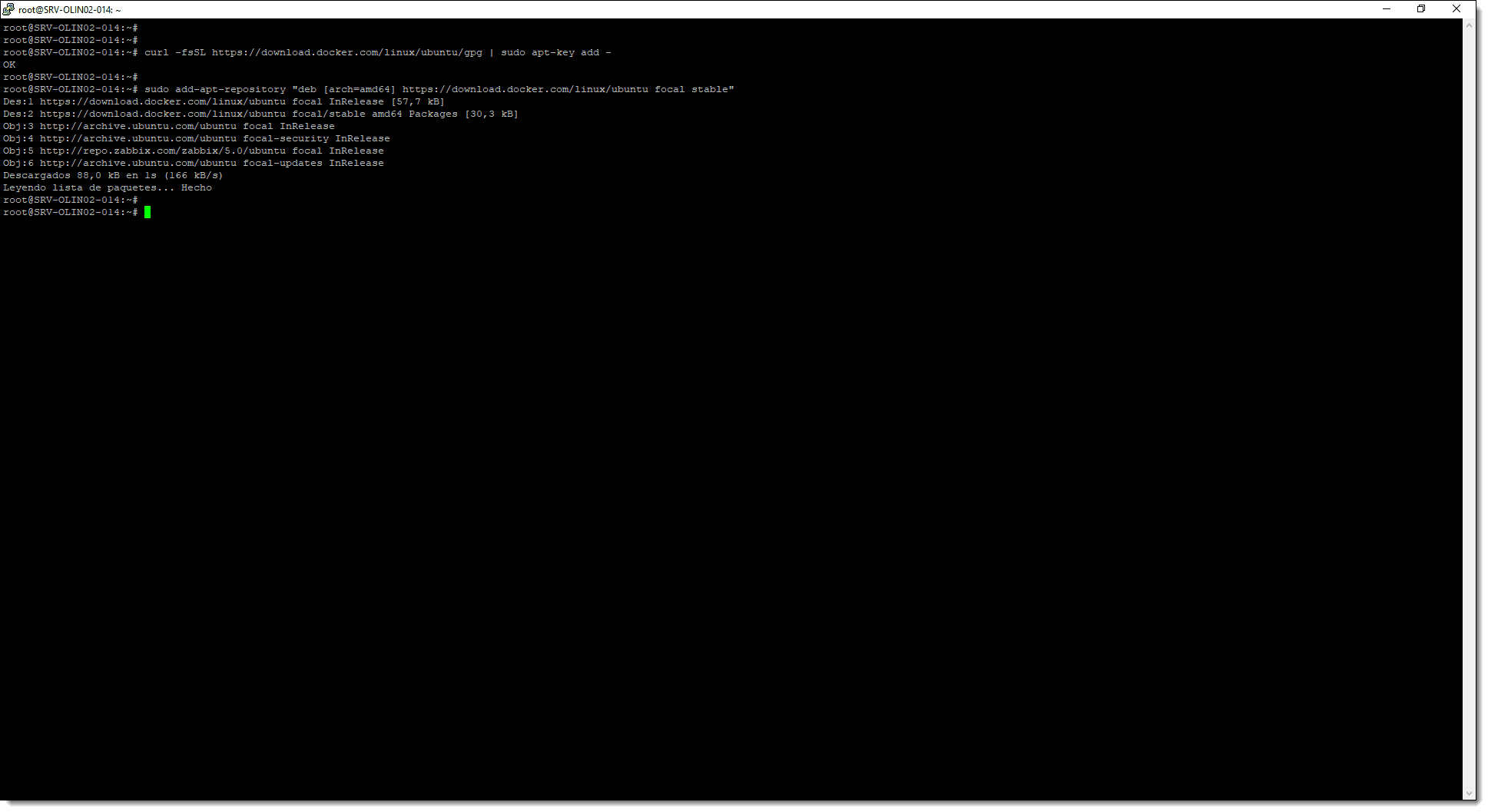
Next, we add the project's official GPG key:
*# curl -fsSL | sudo apt-key add -- s*
We add the official repository, replacing the one that comes by default in Ubuntu 20.04:
*# sudo add-apt-repository «deb \[arch=amd64] focal stable»*
*# apt-cache policy docker-ce*
Step 1. We add the Docker GPG key and add the official repository
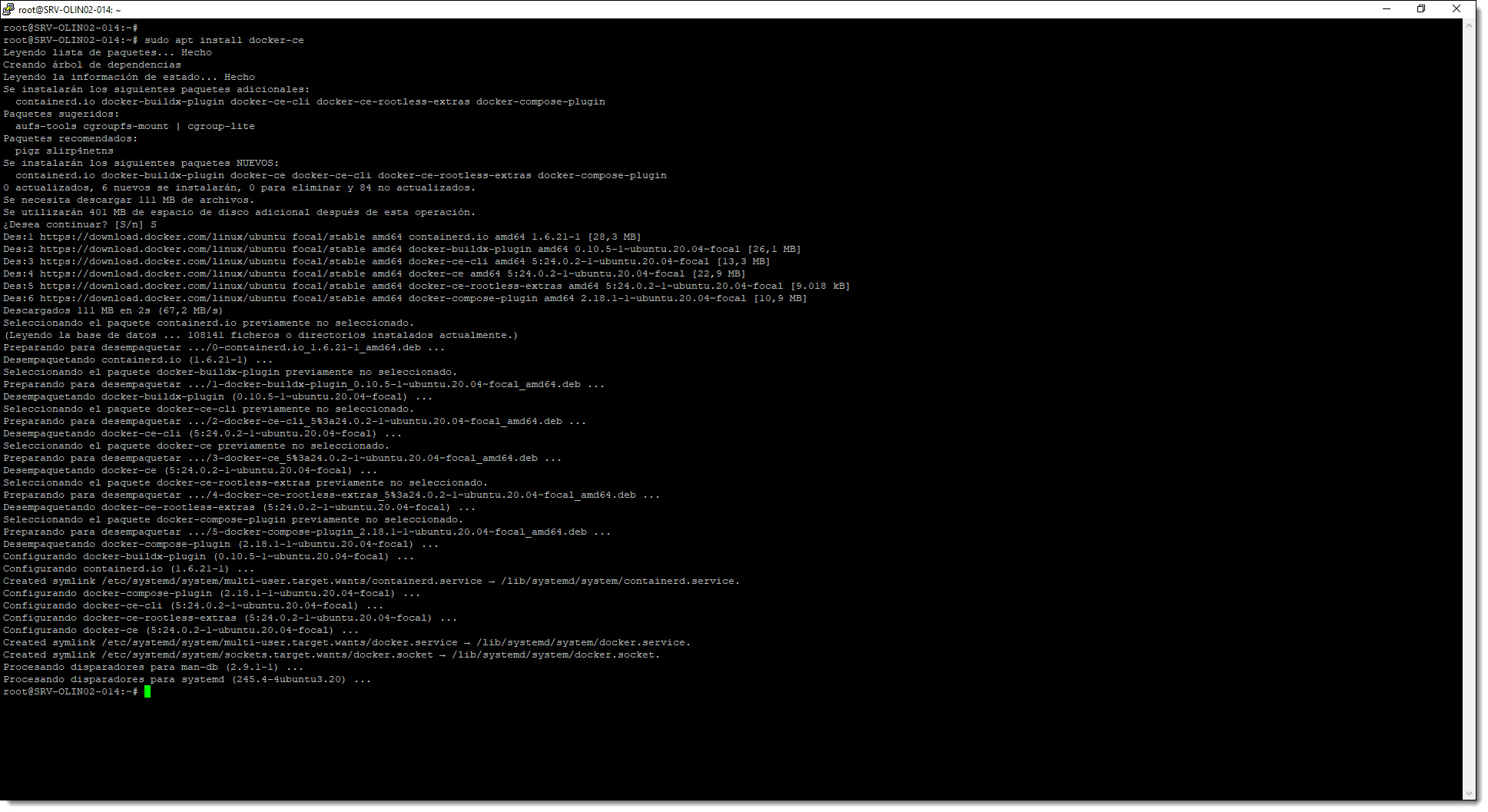
Finally, we proceed to install the Docker package:
*# sudo apt install docker-ce*
Step 1. We launch the Docker installation from the Ubuntu CLI
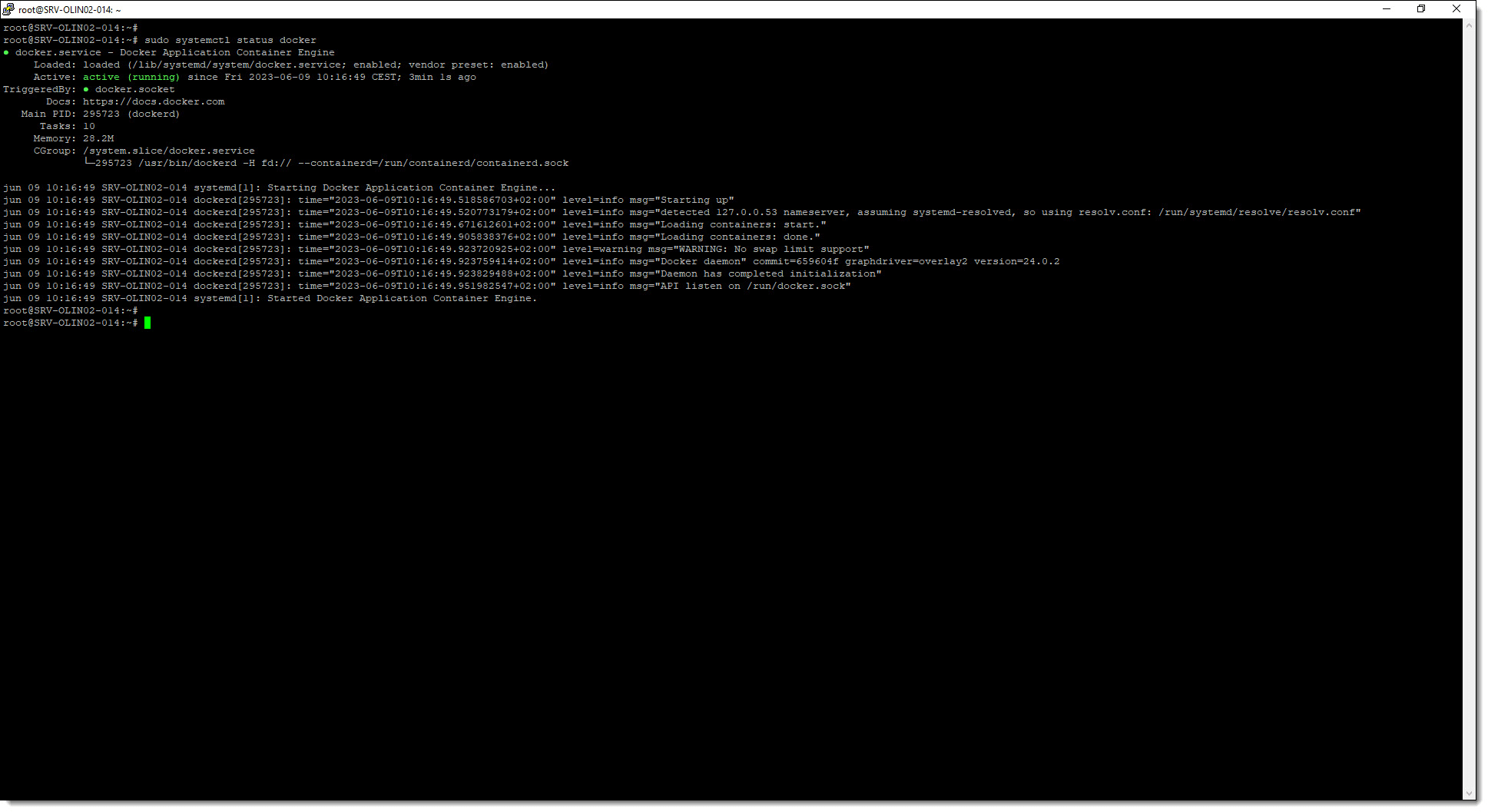
At this point, it is assumed that the package is already installed, but to make sure, we will run a command that will check whether the service is operational.
*# sudo systemctl status Docker*
Step 1. We check that the Docker service is running correctly
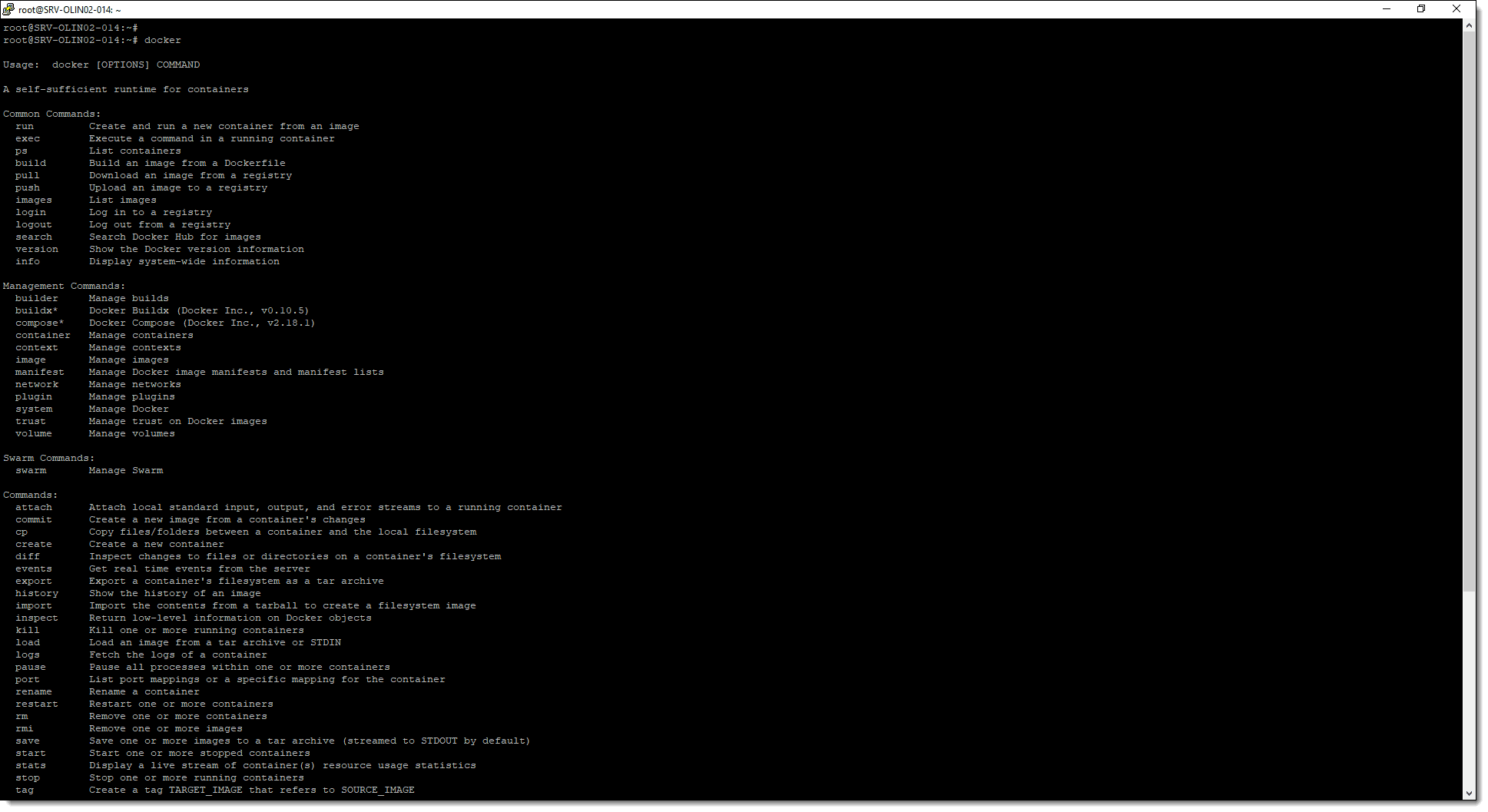
Another test that can be done is the service itself, that is, run the command and wait for it to return the available options.
*# docker*
Or
*# docker info*
Step 1. We check that the Docker command is working.
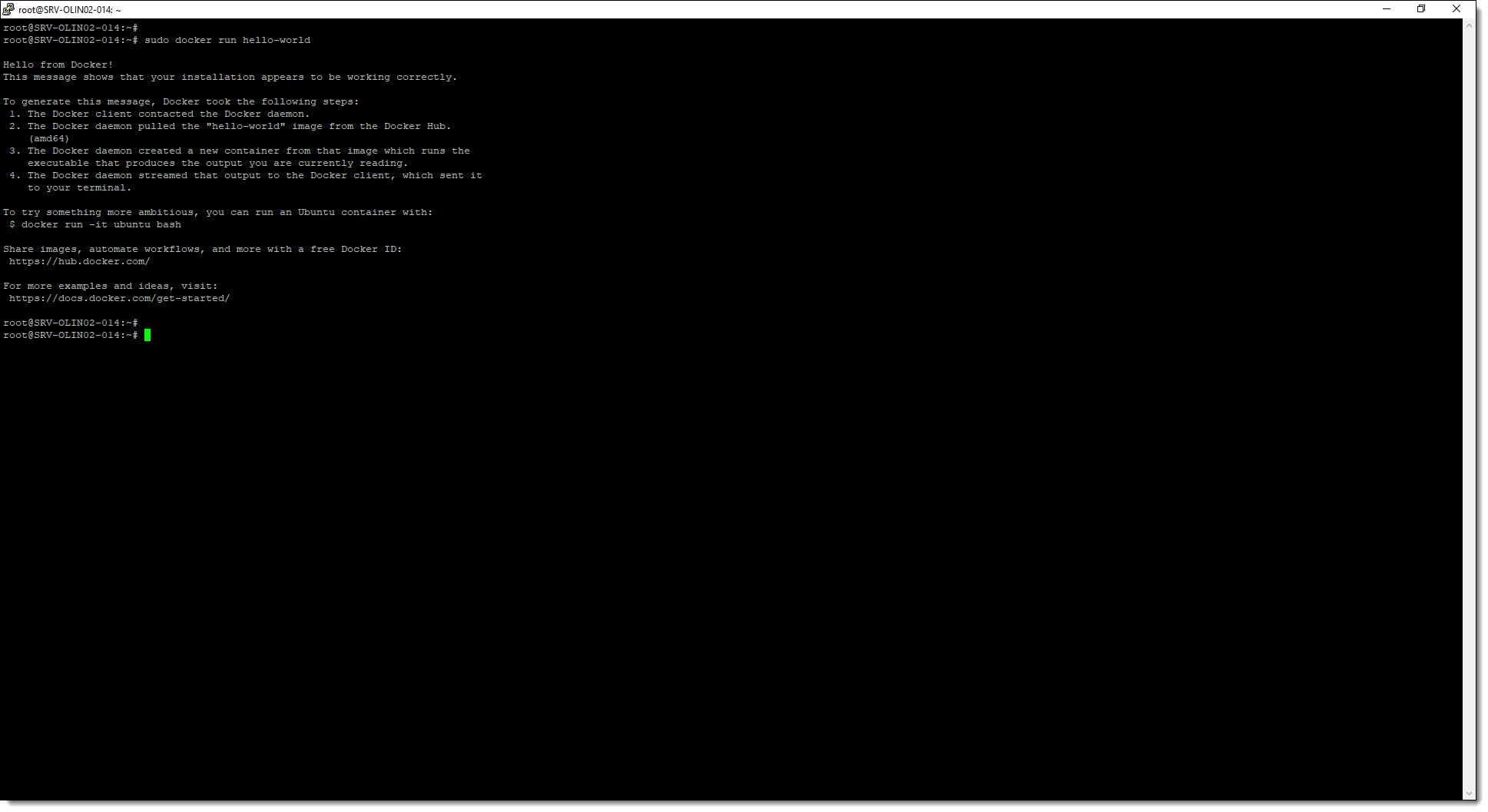
Another test can be to run Docker's "Hello World" command, that is, the classic "Hello World" so well known in computing.
*# docker run hello-world*
Step 1. We launch a Docker Hello World
### **Conclusions:**
As you can see, **setting up Docker on Plenit's Ubuntu Linux servers** is very easy to do by following the steps we have described.
In this case we have seen how to deploy the container service on our GNU/Linux servers, **Ubuntu 20.04** (the latest version available as of this date) but the same procedure can be used for other versions with slight changes.
You can check other tutorials and articles related to this technology, GNU/Linux or other technologies by visiting our [blog](https://jotelulu.com/blog/){target="\_blank" rel="noopener"}, and you can see the article where we installed Odoo on Docker containers at this [link](https://jotelulu.com/soporte/tutoriales/como-instalar-odoo-en-un-servidor-linux-de-jotelulu/){target="\_blank" rel="noopener"}.
Thanks for joining us!
---
# Agent Instructions
This documentation is published with GitBook. GitBook is the documentation platform designed so that both humans and AI agents can read, navigate, and reason over technical content effectively. Learn more at gitbook.com.
## Querying This Documentation
If you need additional information that is not directly available in this page, you can query the documentation dynamically by asking a question.
Perform an HTTP GET request on the current page URL with the `ask` query parameter, and the optional `goal` query parameter:
```
GET https://docs.plenit.com/docs-en/support/tutorials/linux/how-to-set-up-docker.md?ask=&goal=
```
`ask` is the immediate question: it should be specific, self-contained, and written in natural language.
`goal` is optional and describes the broader end goal you are ultimately trying to accomplish on behalf of the user. GitBook uses it to tailor the answer towards what is most useful for that goal.
The response will contain a direct answer to the question and relevant excerpts and sources from the documentation.
Use this mechanism when the answer is not explicitly present in the current page, you need clarification or additional context, or you want to retrieve related documentation sections.