

How to Manage Your VPN Logs and Diagnose Issues
The troubleshooting console lets you generate, view, and download the VPN tunnel logs from the dashboard, and diagnose most incidents on your own.
The key is to read the log to know in which phase the connection fails.
👍 What you get
Locate the exact point of failure (the initial connection or data transfer) and the action that fixes it, without depending on support in most cases.
Before you begin
Have access to the dashboard with permissions over the network subscription.
Have a VPN tunnel created, whether operational or not.
Optionally, access to the remote machine logs to correlate if you need to go further.
Step 1. Generate and view the logs
Enter your VPN subscription and open Troubleshooting / Logs.
Click Generate logs.
In the console you can view the exchange events, search terms, copy snippets and download the file
.logto review it locally.
Recommended search terms: error, failed, proposal, AUTH, TS_, CHILD_SA, responding.
{/* 📸 CAPTURE 1 · Troubleshooting / Logs console with the Generate logs button and the search bar */}

📘 Two details so you don't get confused
Time zone: the logs show the time converted to your time zone, so the timestamp matches the actual time of the test and you can compare it with the remote machine log.
Size-based rotation: history is managed by size, not by days. If you're chasing a specific failure, reproduce it and generate the logs right after.
The two phases of the connection
A site-to-site tunnel comes up in two phases. Knowing which one fails takes you straight to the cause.
Phase 1 — Initial connection (IKE)
The two ends validate each other and agree on how they will talk. When it goes well, the log shows IKE_SA ... established. If it fails, the usual causes are that the other end does not respond (connectivity or closed ports), that basic settings do not match (for example, encryption), or that the key (PSK) or the identity do not match.
Phase 2 — Data transfer (IPsec / CHILD_SA)
With the initial connection ready, the tunnel through which real traffic flows is created. When it goes well, it shows CHILD_SA ... established. If it fails, the usual causes are that the subnets do not match on both sides, that a firewall or policy blocks the traffic, or that routes to the remote network are missing.
📘 Quick rule
If you see
IKE_SA ... establishedbut notCHILD_SA ... established, the problem is in networks, routes, or firewall (Phase 2). If you don't get toIKE_SA ... established, it's in the initial connection (Phase 1).
Interpret the log messages
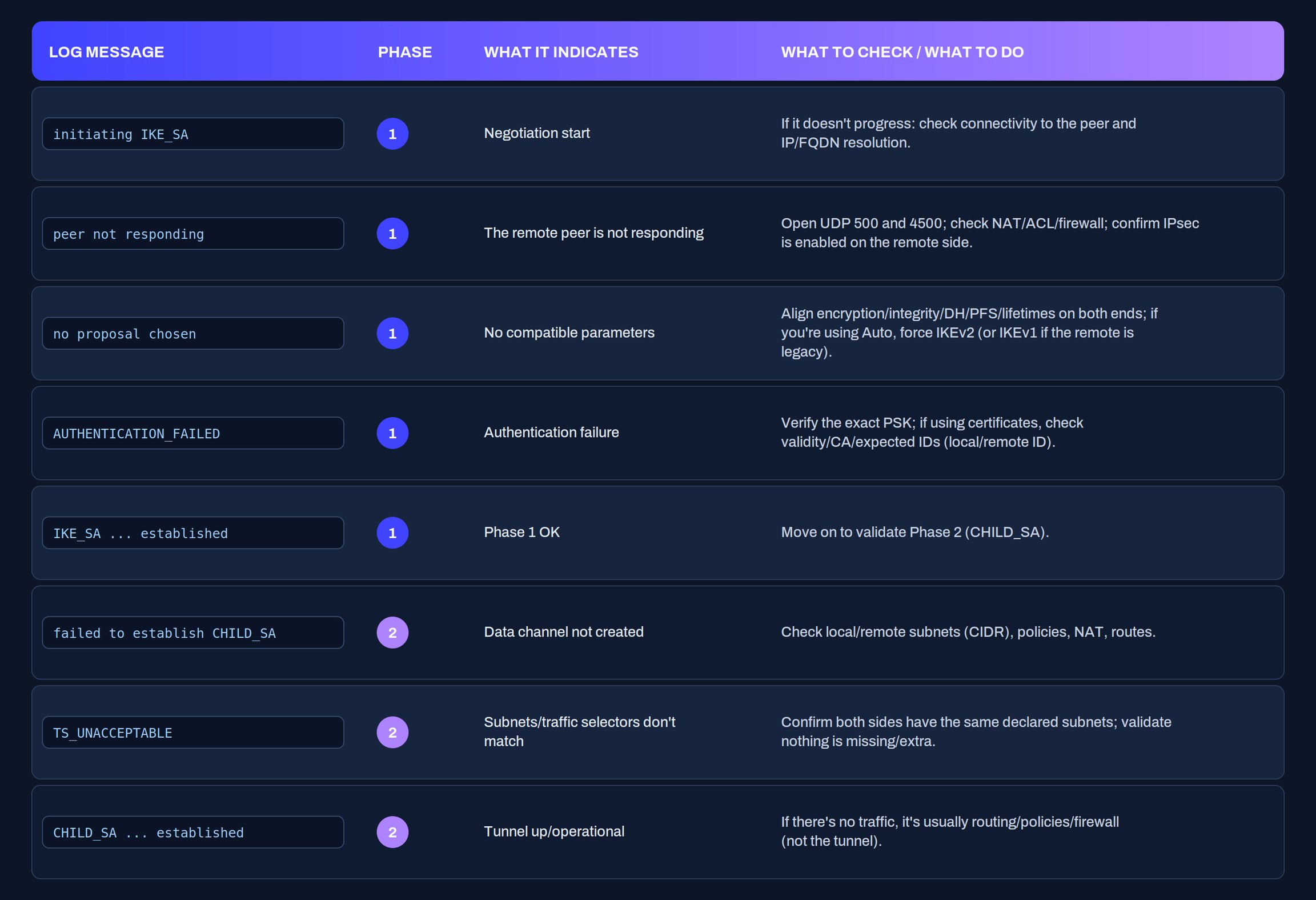
Diagnostic checklist
Generate logs and search
error,failed,proposal,AUTH,TS_.Does
IKE_SA ... establishedappear? notIfinitiating IKE_SAwithout going beyond that). If yes, continue.Does
CHILD_SA ... established? If you seefailed to establish CHILD_SA, it is usually networks, routes, or firewall (Phase 2). If yes appears, the tunnel is fine; if there is still no traffic, look at routes and policies, not the tunnel.peer not responding→ check UDP 500/4500 and firewall/NAT.no proposal chosen→ there are mismatched settings (ciphers, groups, lifetimes).AUTHENTICATION_FAILED→ check the key (PSK) or certificates and IDs.TS_UNACCEPTABLE→ check that the subnets match exactly on both sides.
Check from the client side
The logs tell you the phase; these commands confirm the cause from a server on your network.
For Phase 1, check connectivity to the peer and that the IPsec ports are open. On Linux:
On Windows, basic connectivity from PowerShell (UDP ports 500/4500 must be open in the firewall and NAT on both sides):
For Phase 2, check that you can reach the remote subnet and that there is a route to it:
When to escalate to Partner Success
If after these steps you're still stuck, the Partner Success team will help you out. To resolve it as soon as possible, send:
From the log: the first error that appears, 20-30 lines before and after to see the context, and the timestamps exactly as they appear.
From the tunnel: IKE version (v1/v2/Auto), IP or FQDN of the peer, local and remote subnets in CIDR, whether there is NAT or a firewall in between, and the exact time of the test.
Since logs rotate by size, reproduce the failure and generate the logs right after: that way the file contains exactly what needs to be looked at.
Conclusion
With the troubleshooting console you go from "the VPN doesn't work" to "it fails in Phase 2 because the subnets don't match" in minutes. The method is always the same: locate whether you reach IKE_SA established and CHILD_SA established, and that tells you whether to look at the initial connection or the data transfer. From there, the table and the commands lead you to the cause.
Last updated
Was this helpful?