> For the complete documentation index, see [llms.txt](https://docs.plenit.com/llms.txt). Markdown versions of documentation pages are available by appending `.md` to page URLs; this page is available as [Markdown](https://docs.plenit.com/docs-en/productos/servers-2/how-to/ikev2-and-split-tunneling.md).
# New VPN Configuration Improvements: IKEV2 and Split Tunneling
These tunnel options give you more control over the connection: you choose the **IKE version** used in negotiation and, when you work with multiple remote networks, decide whether to enable **Split Tunneling**.
All from the dashboard, on a tunnel you already have set up.
> #### 👍 What you get
>
> A tunnel tailored to your topology and to the device at the other end: with the appropriate IKE version and, if you want, an independent SA for each remote network.
### Before you begin
* Have access to the Plenit dashboard with permissions over the network subscription.
* Have a VPN tunnel already created and operational. If you don't have one yet, set it up first:[ How to create a site-to-site VPN tunnel.](https://docs.plenit.com/docs-en/productos/servers/how-to/how-to-create-a-site-to-site-vpn-tunnel.md)
* For Split Tunneling, have declared **at least two remote networks** in the tunnel.
### Step 1. Configure the IKE version
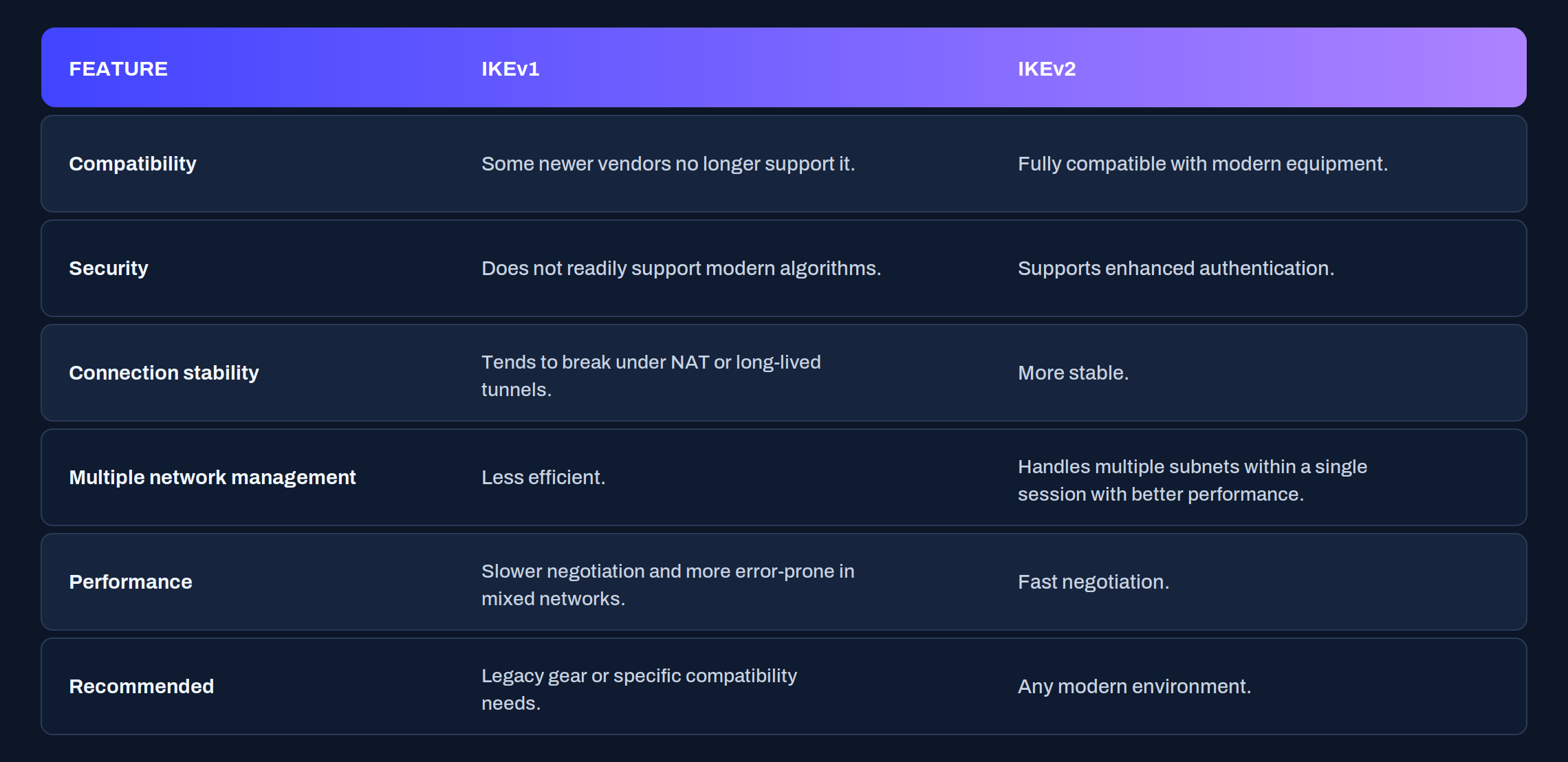
The platform lets you choose the IKE version used when negotiating the tunnel:
* **IKEv1**: use it only if the remote device does not support v2.
* **IKEv2**: the recommended one, for compatibility, security, and stability.
* **Automatic**: the platform decides based on who initiates the connection.
In automatic mode, if **Plenit initiates** the connection tries IKEv2 by default (and may not be established if the remote side only accepts v1); if **Plenit responds** in passive mode, it adapts to the version proposed by the initiator.
When to use each one: **IKEv2** if both ends support it; **IKEv1** only if the remote side does not support v2; **Automatic** if you don't control who always initiates the connection. If problems appear in automatic mode, explicitly set v1 or v2.
> #### 🚧 Changing the version renegotiates the tunnel
>
> Changing the IKE version forces the connection to renegotiate. Schedule the change in a window without critical traffic.
### Step 2. Enable Split Tunneling
When you declare multiple remote networks in the same tunnel, Split Tunneling makes the platform create an **independent SA (Security Association) for each network**, instead of grouping them into one. That gives you flexibility to adapt the connection to your network design and the behavior of the remote device.
In some environments, a **single SA** (unified mode); in others, separating the networks (Split Tunneling). The decision depends on your topology and the recommendations of the manufacturer at the other end.
{/\* 📸 CAPTURE 2 · Split Tunneling control enabled (visible with two or more remote networks) \*/}

| Mode | What it does | When it fits |
| --------------- | ----------------------------------- | ------------------------------------------------- |
| Unified | A single SA for all remote networks | The remote device groups the networks into one SA |
| Split Tunneling | One SA for each remote network | You want to manage each network separately |
#### Conditions
* The Split Tunneling control **only appears with two or more remote networks** configured.
* **Requires IKEv2**: when you enable it, the platform automatically adjusts the tunnel version.
* If the remote end works with a single SA, the tunnel remains active and functional in **unified mode**.
#### Compatibility between manufacturers
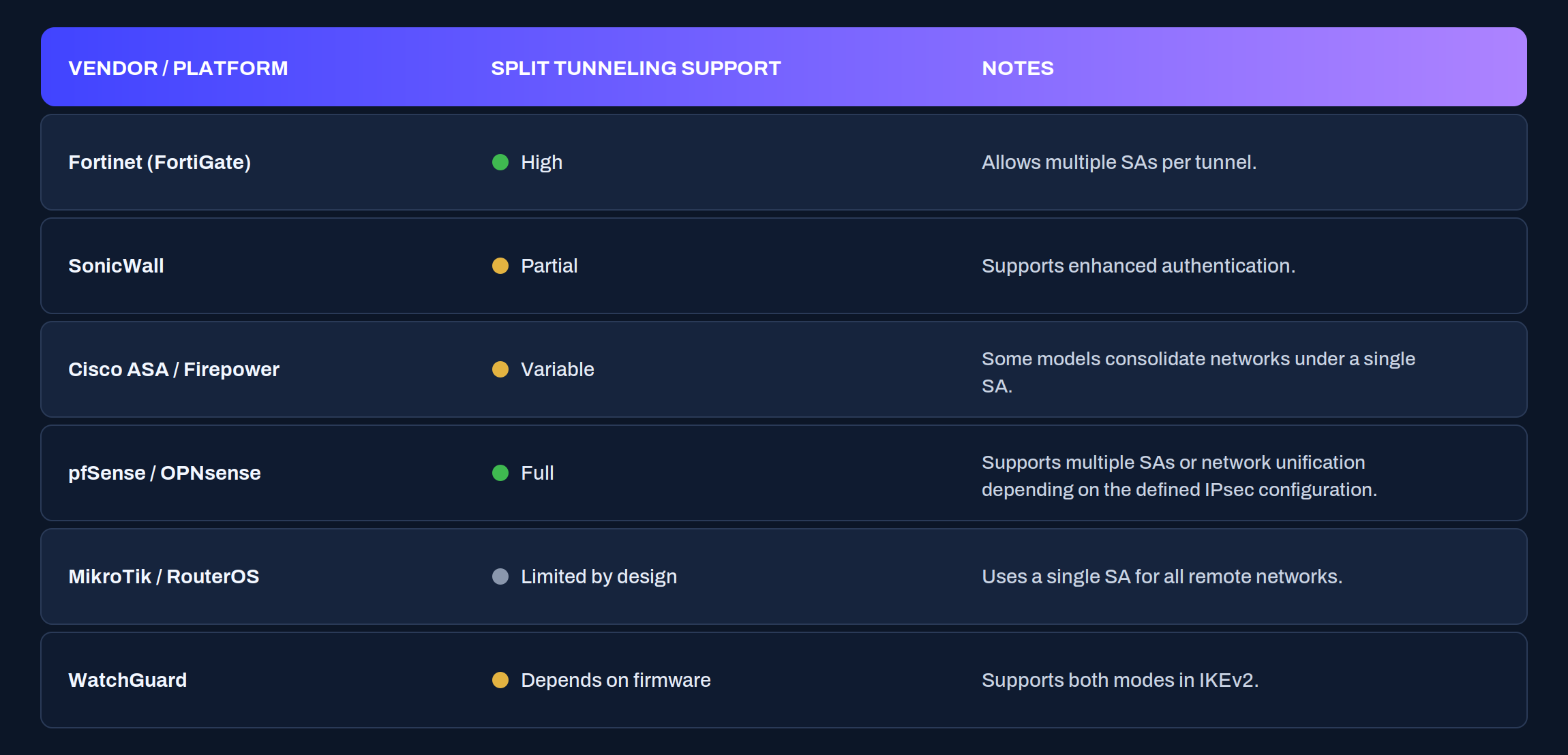
Each manufacturer groups or separates networks differently. This is not a compatibility problem: Plenit lets you choose the mode (unified or Split Tunneling) to fit your equipment. For reference:
### Verify the configuration
After changing the IKE version or enabling Split Tunneling, confirm that the tunnel is still up and that each remote network routes. From a server on your local network, run `ping` to an IP in **each** declared remote subnet:
```bash
ping
ping
```
And check that there is a route to each remote subnet. On Linux:
```bash
ip route
```
On Windows, from PowerShell:
```powershell
route print
```
With Split Tunneling enabled, each remote network is validated separately: if one responds and another does not, the problem is in that specific network, not in the whole tunnel.
### If something doesn't fit
| Symptom | Likely cause | What to do |
| -------------------------------------------------- | ------------------------------------------------------ | --------------------------------------------------------------------- |
| The tunnel does not come up in Automatic mode | The remote side only accepts IKEv1 and Plenit tried v2 | Explicitly set IKEv1 |
| The Split Tunneling control does not appear | There are fewer than two remote networks | Declare at least two remote networks in the tunnel |
| Enabling Split Tunneling changed the version | Split Tunneling requires IKEv2 | This is the expected behavior: adjust the change window |
| One remote network does not route and another does | SA or route for that network misconfigured | Check that specific subnet with `ping` and `ip route` / `route print` |
### Conclusion
With these options you adapt the tunnel to the reality of the other end: IKEv2 whenever you can, and Split Tunneling when you want to manage each remote network on its own.
The practical rule is simple: prioritize IKEv2 for compatibility and stability, and reserve unified mode for when the remote device can only work with a single SA.
---
# Agent Instructions
This documentation is published with GitBook. GitBook is the documentation platform designed so that both humans and AI agents can read, navigate, and reason over technical content effectively. Learn more at gitbook.com.
## Querying This Documentation
If you need additional information that is not directly available in this page, you can query the documentation by asking a question.
Perform an HTTP GET request on the following URL with the `ask` and `goal` query parameters:
```
GET https://docs.plenit.com/docs-en/productos/servers-2/how-to/ikev2-and-split-tunneling.md?ask=&goal=
```
`ask` is the immediate question: it should be specific, self-contained, and written in natural language.
`goal` is what the user is ultimately trying to achieve, the reason they need the answer. Sharing it helps GitBook give you a better, more relevant answer. A goal is most helpful when it describes the outcome the user wants rather than restating the question. For example, with `ask=how do I create an API token`, a goal like `automate deployments from our CI pipeline` lets GitBook tailor the answer to that use case.
The response will contain a direct answer to the question and relevant excerpts and sources from the documentation.
Use this mechanism when the answer is not explicitly present in the current page, you need clarification or additional context, or you want to retrieve related documentation sections.