> For the complete documentation index, see [llms.txt](https://docs.plenit.com/llms.txt). Markdown versions of documentation pages are available by appending `.md` to page URLs; this page is available as [Markdown](https://docs.plenit.com/docs-en/productos/remote-desktop/how-to/printing-modes.md).
# Different Printing Modes in Remote Desktop
Which printing mode (Universal Printer, TS Print, mapping, local printers) fits each connection mode to the environment.
Printing from a remote environment depends on **how each user connects**: not all printing methods work with all connection modes.
This guide relates both things so you choose well when configuring your users, and summarizes compatibility in a table.
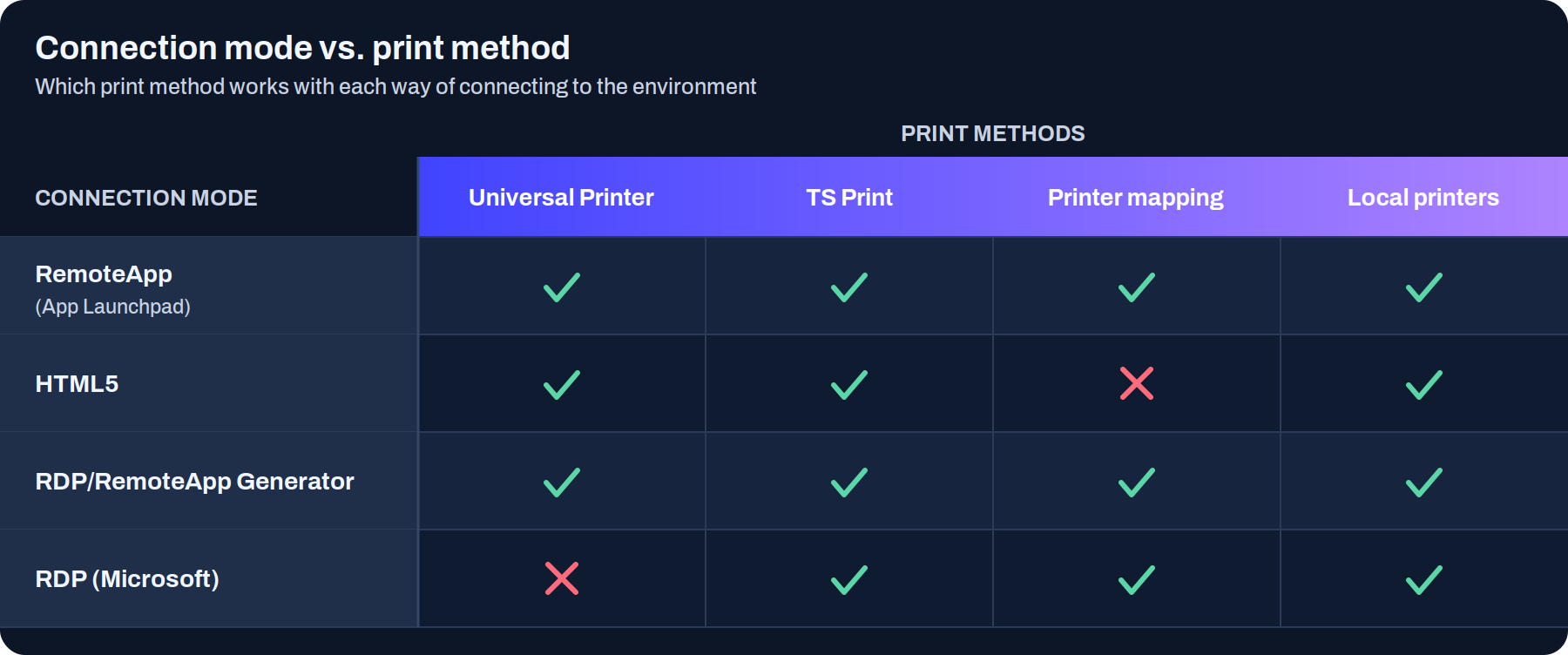
### Compatibility at a glance
> #### 📘 The only two incompatibilities
>
> Almost everything is compatible, but there are two exceptions worth remembering: **HTML5 does not support printer mapping**, and **RDP (Microsoft) does not support Universal Printer**.
>
> For those cases, choose another compatible method from the row.
### Connection modes
How the user enters the environment. You configure it in their profile, within the users section.
* **RemoteApp (Application Launchpad)**: applications run in the environment but integrate with the user's computer almost like local apps (for example, you can move them between monitors). Intended for Windows computers. Accessed through the user portal.
* **HTML5**: everything runs inside the browser. Slightly less integration with the local computer, but it's the ideal option for Mac, Linux, or Android. Also through the user portal.
* **RDP/RemoteApp Generator**: a direct connection from the user's desktop, without going through the portal.
* **RDP (Microsoft)**: a full desktop experience, with total control of the environment. Accessed through the user portal.
### Printing methods
How the document gets from the server to the user's printer.
* **Universal Printer**: a smart print driver that supports a wide range of printers. It shows a dialog with the user's local printers or prints directly to their default printer.
* **TS Print**: printing software for remote desktop environments. Requires purchasing its **specific license** and configuring it; the license is purchased from the Software Licenses subscription.
* **Printer mapping**: brings local printers into the environment using the drivers recognized by Microsoft. It is 100% dependent on that compatibility: if Microsoft recognizes the model, it appears; if not, it does not.
* **Local printers**: by default, the environment shows the dialog with the user's local printers when printing. It is compatible with all connection modes.
> #### 🚧 TS Print requires a license
>
> Unlike the others, TS Print is not available out of the box: it requires purchasing its license from the Software Licenses subscription and configuring it before use.
### Conclusion
Before deciding how a user prints, first look at how they connect: the connection mode is what limits the available printing methods.
The table clears up most doubts at a glance, and you only have to remember the two exceptions (HTML5 without mapping, RDP without Universal Printer). For a mixed environment, Universal Printer is usually the safe bet because it doesn't depend on drivers; and if you need TS Print, factor in its separate license.
### Next steps
* Configure Universal Printer behavior and the service in [How to manage printers.](/docs-en/productos/remote-desktop/how-to/how-to-manage-local-printers.md)
* Review the details of each method in [Printing.](/docs-en/productos/remote-desktop/details/printing.md)
* Define how each user connects in [Connection modes.](/docs-en/productos/remote-desktop/details/connection-modes-compatibility.md)
---
# Agent Instructions
This documentation is published with GitBook. GitBook is the documentation platform designed so that both humans and AI agents can read, navigate, and reason over technical content effectively. Learn more at gitbook.com.
## Querying This Documentation
If you need additional information that is not directly available in this page, you can query the documentation dynamically by asking a question.
Perform an HTTP GET request on the current page URL with the `ask` query parameter, and the optional `goal` query parameter:
```
GET https://docs.plenit.com/docs-en/productos/remote-desktop/how-to/printing-modes.md?ask=&goal=
```
`ask` is the immediate question: it should be specific, self-contained, and written in natural language.
`goal` is optional and describes the broader end goal you are ultimately trying to accomplish on behalf of the user. GitBook uses it to tailor the answer towards what is most useful for that goal.
The response will contain a direct answer to the question and relevant excerpts and sources from the documentation.
Use this mechanism when the answer is not explicitly present in the current page, you need clarification or additional context, or you want to retrieve related documentation sections.