> For the complete documentation index, see [llms.txt](https://docs.plenit.com/llms.txt). Markdown versions of documentation pages are available by appending `.md` to page URLs; this page is available as [Markdown](https://docs.plenit.com/docs-en/productos/remote-desktop/how-to/how-to-connect-to-remote-desktop-via-site-to-site-vpn.md).
# How to Connect to the Remote Desktop Environment via Site-to-Site VPN
Connect the Remote Desktop server to the customer's office network through a VPN tunnel: add the VPC network card and the static route to the remote network.
For the Remote Desktop environment to reach the customer’s office network without exposing anything to the internet, you connect it through a site-to-site VPN tunnel. This guide covers the missing part on the Remote Desktop server side, once the tunnel already exists: adding the VPC network card and the static route to the remote network.
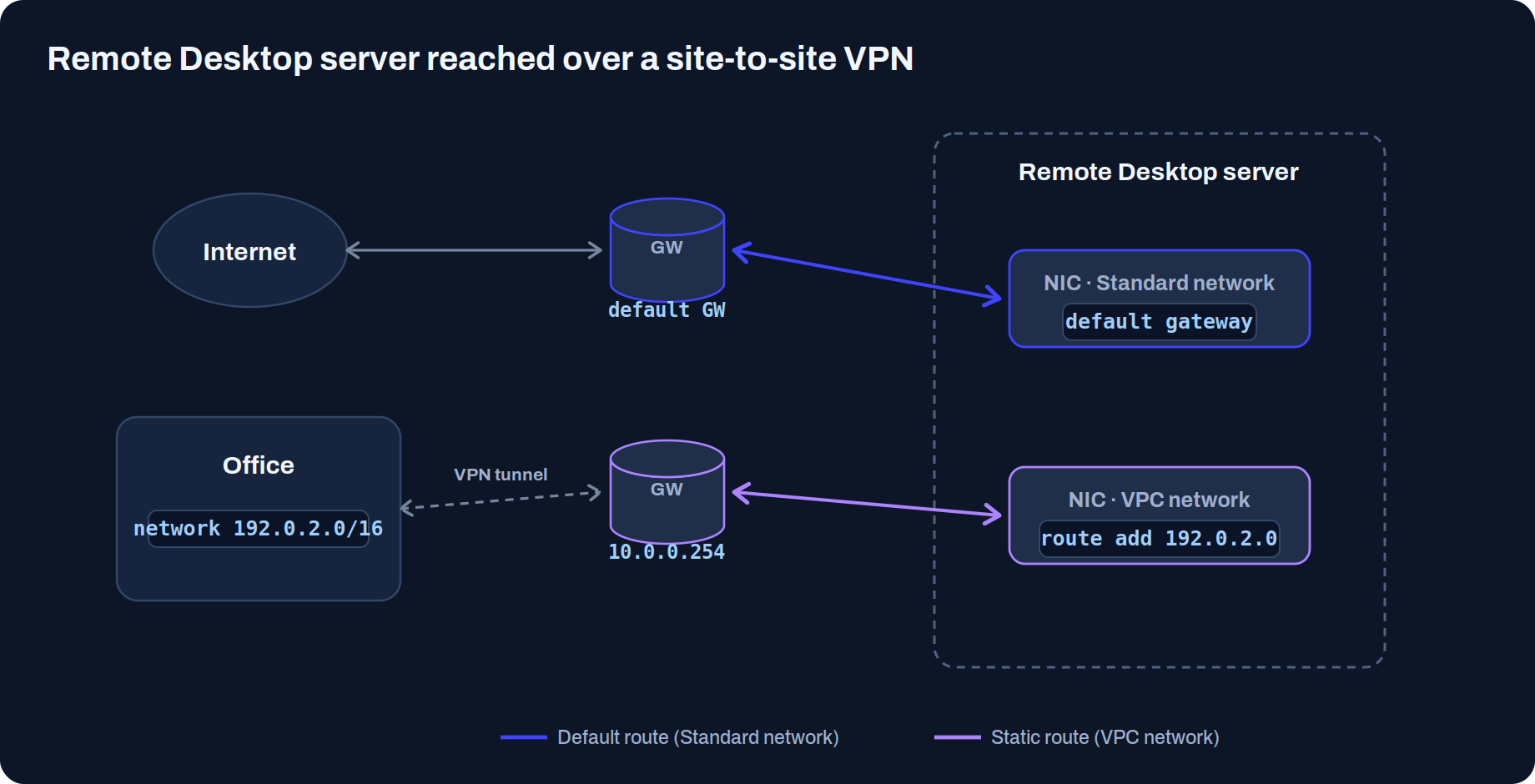
This is the topology we end up with: the server reaches the internet through the Standard network (its default route) and reaches the office network through the VPC network via the tunnel, thanks to a static route.
> #### 👍 What you get
>
> The Remote Desktop server communicating with the office network through the VPN tunnel, with its network card in the VPC and the static route to the remote network.
### Before you start
This guide assumes that the VPN tunnel is already set up. Beforehand, you need to have:
* An active Remote Desktop subscription. If you don’t have one yet, set it up with the [Remote Desktop Quick Start.](/docs-en/productos/remote-desktop/quickstart.md)
* A **VPC** network with its associated TIER. The process is in [Server Networks.](/docs-en/productos/servers/concepts/networks.md)
* A **site-to-site VPN tunnel** already created, in [How to create a site-to-site VPN tunnel.](/docs-en/productos/servers/how-to/how-to-create-a-site-to-site-vpn-tunnel.md)
> #### 📘 Where to see the VPN configuration
>
> The tunnel configuration (public IPs on both ends, networks, and TIER) is in the Servers subscription, in the VPN subsection. It will serve as a reference for the static route data in Step 2.
### Step 1. Add the VPC network card to the server
Go to the server record that was deployed with the Remote Desktop environment: **Servers → edit server → Network Cards**. Click to add a new network card.
{/\* 📸 SCREENSHOT 1 · Server Network Cards · add new card \*/}

In the wizard, select the **VPC (TIER) network** that you want to connect and continue. If only one network is available, simply continue; if there are several, choose the correct one before proceeding.
{/\* 📸 SCREENSHOT 2 · TIER network selection · continue \*/}

When you finish, the server has two interfaces: the **Standard (INT)** network one as the default, and the new one from the **VPC (TIER)**.
{/\* 📸 SCREENSHOT 3 · server with its two network cards \*/}

> #### 🚧 The default route still goes out through the Standard network
>
> The server keeps its default outbound path through the Standard network gateway. To make it reach the office network through the tunnel, you need to add a static route that goes through the VPC network gateway. That is Step 2.
### Step 2. Add the static route to the office network
Connect to the server (via RDP, web console, etc.), open the **CMD as administrator** and add a permanent route that directs traffic from the remote network through the VPC gateway:
```shell
route -p add mask METRIC 1
```
For example, to reach the office network `192.0.2.0/16` through the VPC gateway `10.0.0.254`:
```shell
route -p add 192.0.2.0 mask 255.255.0.0 10.0.0.254 METRIC 1
```
{/\* 📸 SCREENSHOT 4 · CMD with the route -p add command executed \*/}

> #### 📘 One route per remote network
>
> If the tunnel provides access to multiple remote networks, add one static route for each one.
>
> The `-p` option makes it permanent, so it survives server restarts.
### Conclusion
Connecting Remote Desktop via site-to-site VPN, once the tunnel exists, is a two-step process: give the server a foothold on the VPC network with a new network card, and tell it how to reach the office with a permanent static route to the VPC gateway.
With that, the environment reaches the customer’s network through the encrypted tunnel, without exposing the service to the internet. Remember to add one route for each remote network it needs to reach.
---
# Agent Instructions
This documentation is published with GitBook. GitBook is the documentation platform designed so that both humans and AI agents can read, navigate, and reason over technical content effectively. Learn more at gitbook.com.
## Querying This Documentation
If you need additional information that is not directly available in this page, you can query the documentation dynamically by asking a question.
Perform an HTTP GET request on the current page URL with the `ask` query parameter, and the optional `goal` query parameter:
```
GET https://docs.plenit.com/docs-en/productos/remote-desktop/how-to/how-to-connect-to-remote-desktop-via-site-to-site-vpn.md?ask=&goal=
```
`ask` is the immediate question: it should be specific, self-contained, and written in natural language.
`goal` is optional and describes the broader end goal you are ultimately trying to accomplish on behalf of the user. GitBook uses it to tailor the answer towards what is most useful for that goal.
The response will contain a direct answer to the question and relevant excerpts and sources from the documentation.
Use this mechanism when the answer is not explicitly present in the current page, you need clarification or additional context, or you want to retrieve related documentation sections.