> For the complete documentation index, see [llms.txt](https://docs.plenit.com/llms.txt). Markdown versions of documentation pages are available by appending `.md` to page URLs; this page is available as [Markdown](https://docs.plenit.com/docs-en/productos/migrations/concepts/the-process.md).
# The Process
The stages of a migration: from the 3-step wizard to transfer, conversion, deployment, adjustments, and validation.
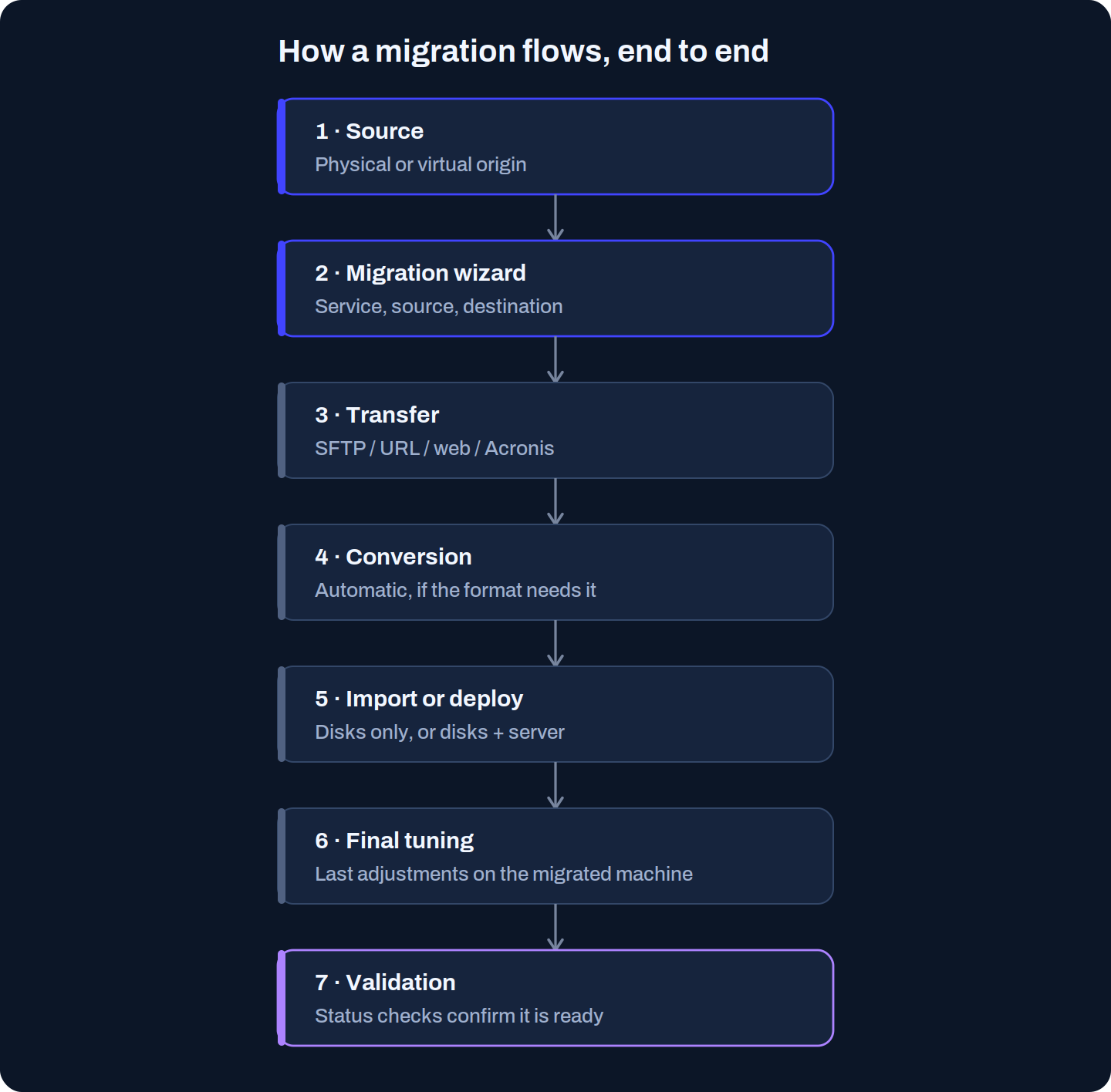
The migration assistant is the visible part, but the value of the service is in what it automates afterward: download, conversion, deployment, and validation.
It helps to understand the full flow so you know where you are at each moment.
### The 3-step assistant
From **Cloud Services → Migrations**, **New migration** opens an assistant that gathers your intent and configuration:
1. **Service**: what you are going to migrate (for example, Servers).
2. **Source**: physical or virtual, disk format, transfer mode, and file names.
3. **Destination**: organization, subscription, and zone, and whether you want to deploy a new server with the disks (name, operating system, size, and network).
> #### 🚧 Step 2 conditions everything
>
> The source format and transfer mode determine the rest of the process. Changing them later means relaunching the migration.
### The stages that follow
Once launched, the migration goes through several phases that are reflected in the status:
* **Transfer**: the disk, backup, or image arrives via SFTP, URL, or Acronis, depending on the flow. You will see statuses such as *preparing transfer* and *waiting for transfer*.
* **Conversion**: if the source format is not directly usable, the platform automatically converts it to a compatible format.
* **Import or deployment**: either you only import the disks, or you also create the destination server.
* **Final adjustments (tuning)**: in migrations with deployment, there may be an adjustment phase. In Windows it usually involves downloading and running an application on the migrated server; in Linux, an application and some additional commands.
* **Final status and validation**: when you see **Pending adjustments**, the planned phases have been completed and only the final adjustments remain. When you validate from the tool, a series of checks confirm that everything is correct; if any fail, it tells you what to fix.
> #### 📘 Notices during the process
>
> Not all migrations flow the same way. Sometimes the process is fully automatic; other times, the tool asks you to take specific actions through notices in the migration details so you can unblock it.
### Tracking
All processes are logged on the main Migrations page, so you can have several migrations running at once and track them from a single place. Each one has its own details, with the current phase, data at each moment, and required actions.
### Next steps
* Launch your first migration with the [Quick guide to the Migration tool](/docs-en/productos/migrations/quickstart.md).
* Choose the guide for the specific source in the [How-to.](/docs-en/productos/migrations/how-to.md)
* Check requirements, costs, and limitations in [Migration Details.](/docs-en/productos/migrations/details.md)
---
# Agent Instructions
This documentation is published with GitBook. GitBook is the documentation platform designed so that both humans and AI agents can read, navigate, and reason over technical content effectively. Learn more at gitbook.com.
## Querying This Documentation
If you need additional information that is not directly available in this page, you can query the documentation dynamically by asking a question.
Perform an HTTP GET request on the current page URL with the `ask` query parameter, and the optional `goal` query parameter:
```
GET https://docs.plenit.com/docs-en/productos/migrations/concepts/the-process.md?ask=&goal=
```
`ask` is the immediate question: it should be specific, self-contained, and written in natural language.
`goal` is optional and describes the broader end goal you are ultimately trying to accomplish on behalf of the user. GitBook uses it to tailor the answer towards what is most useful for that goal.
The response will contain a direct answer to the question and relevant excerpts and sources from the documentation.
Use this mechanism when the answer is not explicitly present in the current page, you need clarification or additional context, or you want to retrieve related documentation sections.